Does Moxfield Have a Card Scanner?
Get a clear, detailed answer backed by real-world testing and community feedback.
Short Answer
No, Moxfield does not have a built-in card scanner. But you can get scanned cards into Moxfield in under 2 minutes using a CSV export from an app like Lotus Scan, which is compatible with Moxfield's import tool. Direct API integration between scanners and Moxfield is not yet standard.
Detailed Answer
Moxfield has become one of the most popular deck building and collection management platforms for Magic: The Gathering, so being able to move data from a scanner app into Moxfield is a common need. While no scanner app currently offers a one-click direct export to Moxfield, the process is straightforward using CSV exports that most apps support.
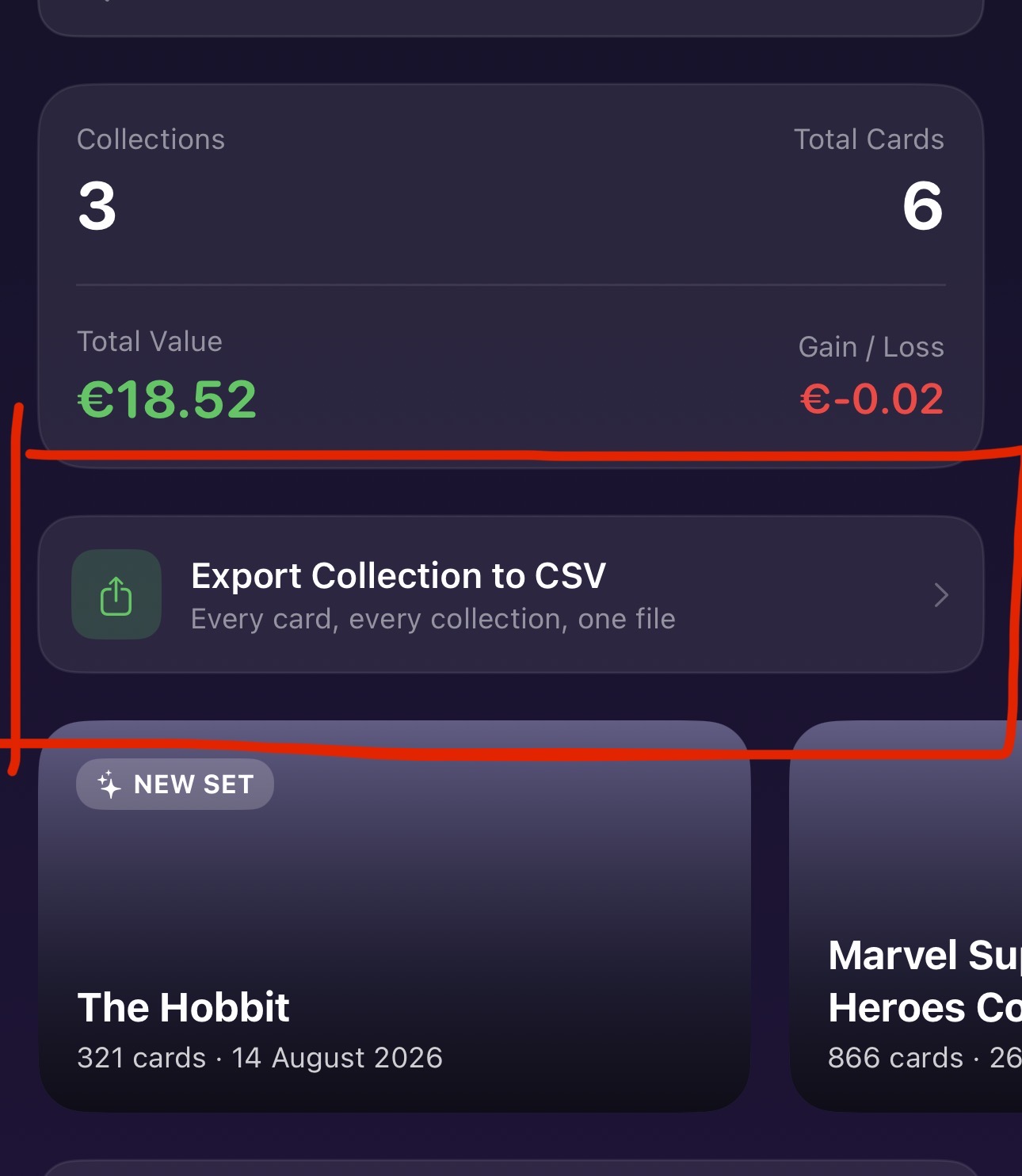
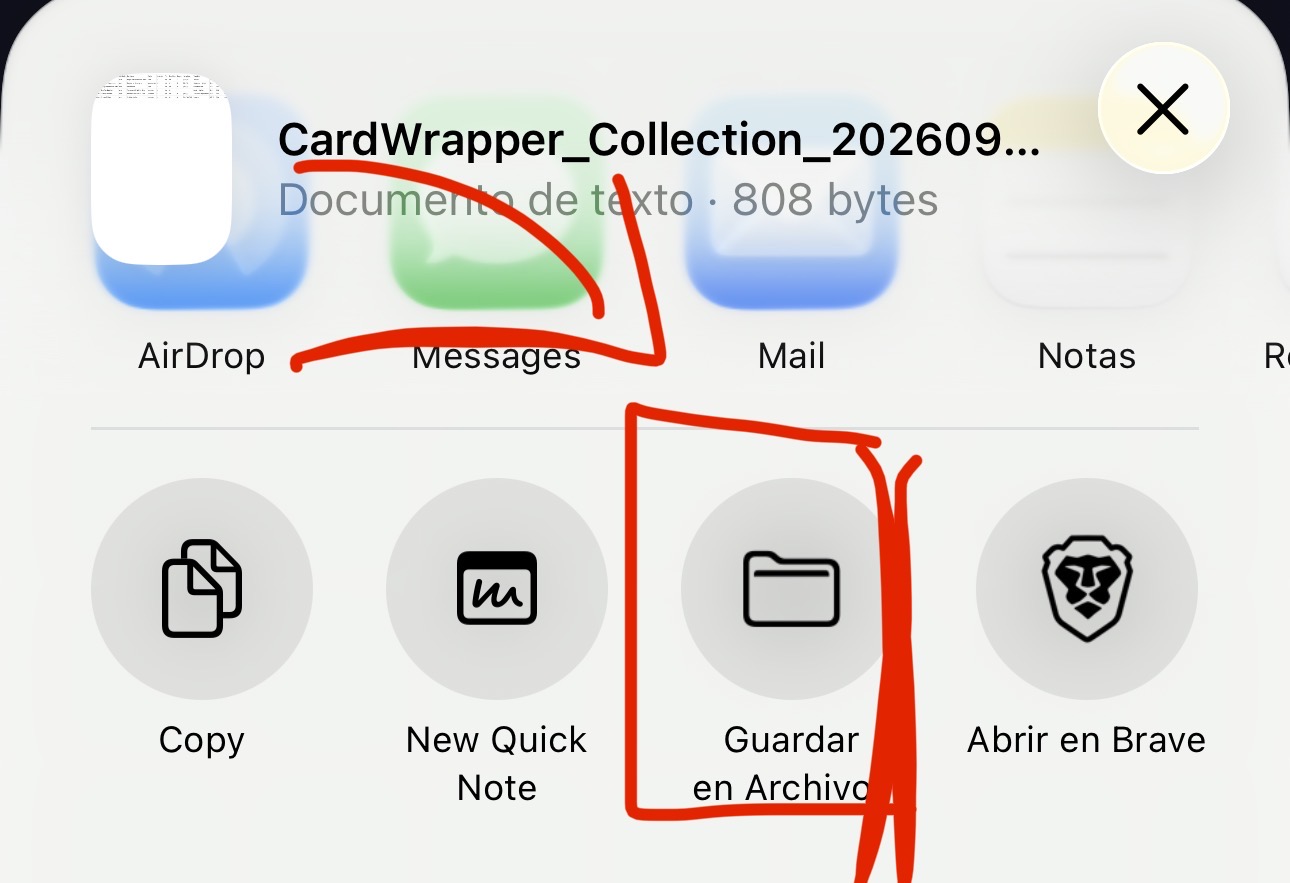
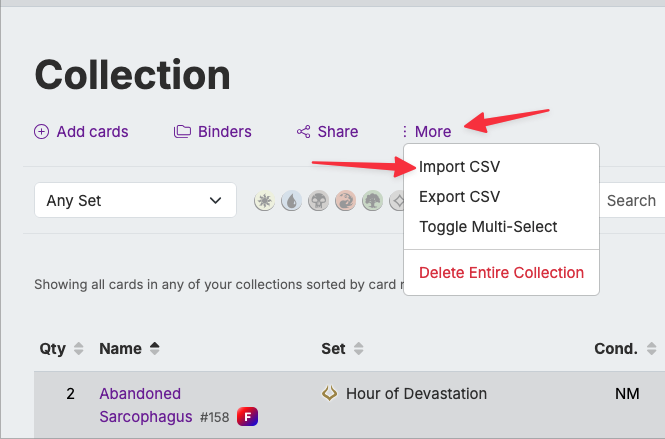
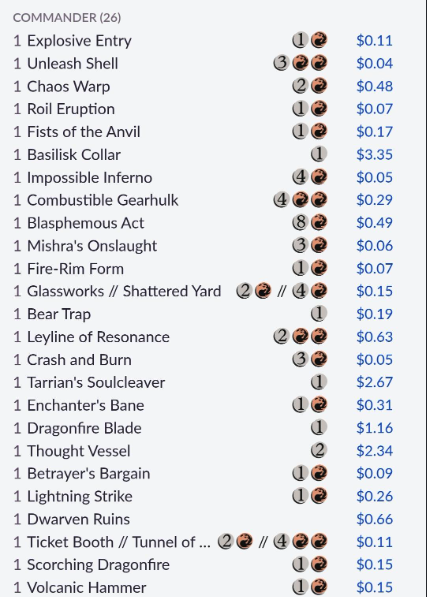
Lotus Scan allows you to export your scanned cards as a CSV file, which contains the card name, set code, collector number, quantity, and condition. Moxfield's import tool accepts plain text lists in the format of quantity followed by card name, and it also supports more detailed CSV formats. The typical workflow is to scan your cards with Lotus Scan, export the collection or a specific subset, and then paste or upload the data into Moxfield's import page.
Moxfield's import tool is quite flexible and can usually figure out which card you mean even with minimal information. However, for the most accurate import, include the set code in parentheses after the card name. This ensures Moxfield picks the exact printing you scanned rather than defaulting to a different one. If your export includes set codes, which Lotus Scan's does, the import will be precise.
Other scanner apps handle exports differently. ManaBox can export to plain text and CSV, and its format works with Moxfield after light cleanup. Delver Lens exports to CSV but its format may require column reordering before Moxfield accepts it. TCGPlayer's app has limited export options and getting data out to use elsewhere is not its strength.
For large collections, it is worth doing a test export with a small batch of cards first to confirm the format works before exporting thousands of cards. Import any subset of 20 to 30 cards into Moxfield, verify the cards and printings are correct, and then proceed with the full collection if everything looks right.
If you primarily use Moxfield for deck building rather than full collection tracking, consider scanning only the cards you want to build decks with rather than your entire collection. This keeps your Moxfield account focused on relevant cards and makes the deck building experience cleaner.
Scanner Export Formats at a Glance
Not every scanner exports the same way. Here is how the apps people actually ask about compare when the destination is Moxfield.
| App | Export format | Includes set code? | Moxfield-ready? |
|---|---|---|---|
| Lotus Scan | CSV | Yes, automatically | Yes — no reformatting needed |
| ManaBox | Plain text or CSV | Yes | Mostly — light cleanup sometimes needed |
| Delver Lens | CSV | Yes | Needs column reordering first |
| TCGPlayer app | Limited export | Inconsistent | Not recommended for bulk export |
What Each CSV Column Means
If you open the export before importing it, here is what Moxfield expects from each column.
| Column | What it contains | Why Moxfield needs it |
|---|---|---|
| Name | The card name exactly as printed | Matches the card in Moxfield’s database |
| Set Code | The 3–4 letter set abbreviation (e.g. MH3, LTR) | Picks the exact printing instead of a random one |
| Collector Number | The number printed on the card | Disambiguates cards that share a name across variants |
| Quantity | How many copies you scanned | Sets the count in your Moxfield binder or deck |
| Condition | NM, LP, MP, HP, or Damaged | Carries over into Moxfield’s collection value if you track it there too |
Try Lotus Scan Free
The fastest way to scan, price, and organize your MTG collection on iPhone.